
Welcome to the wonderful world of Enscribe 0.1.0
Enscribe is free software, released under the General Public License. You should know that there is no warranty on this software for any reason whatsoever. If it eats your dog, you're just out of luck. That being said...
What does Enscribe do?
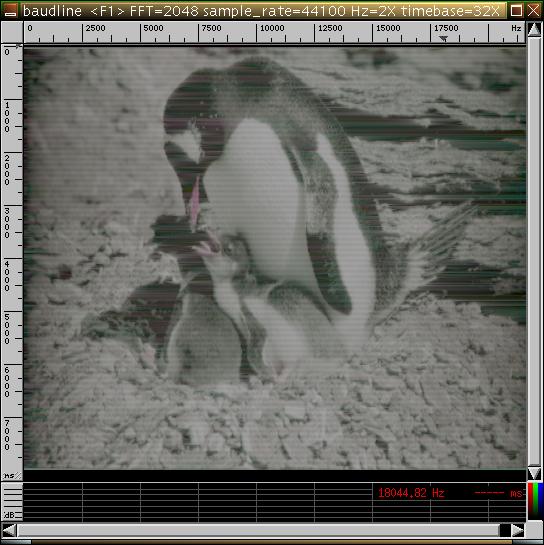 Enscribe
creates digital audio watermark images from photographic images.
Enscribe
creates digital audio watermark images from photographic images.
These images can only be seen using a third party
frequency vs time display, such as my favorite, Baudline
(http://www.baudline.com).
Images are still visible even after such audio mangling
techniques as MP3/Ogg compression, reverb, chorus, etc. Heavy EQ
and flange can stripe out vertical sections, but they can also
ruin an otherwise good song as well.
(Penguin1-ov.mp3)
How does it work?
You give it an image file (JPG, PNG, WBMP) and
it outputs an audio file.
The scanlines of the input image
are converted into frequency components and then using an inverse
Fast Fourier Transform, are converted into sound. The left side of
the image is the low frequency end, and the right is the high end,
up to just under the Nyquist limit if you want it.
Supported
audio formats include Microsoft WAV, Apple AIFF, Sun Microsystems
AU, and raw output. Raw output can also be sent to stdout.
The
audio images sound like high pitch buzzing or hissing.
Colors!
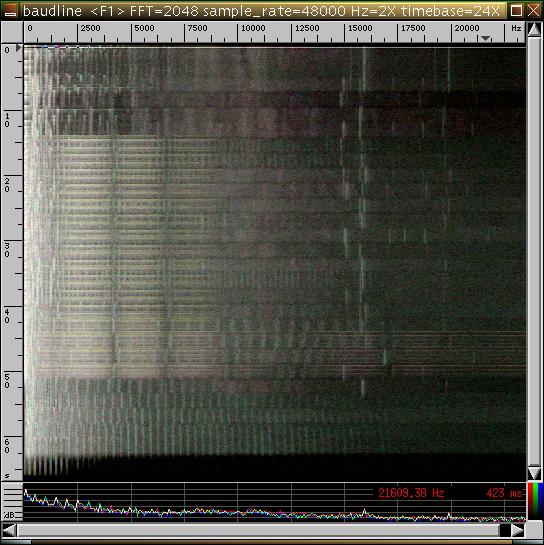 Because
Baudline can display stereo images in two tone color (one for
right, the other for left), color can be encoded into the audio
file. It's not perfect, since there are only two color axes, and
it is dependent upon your viewer, but it's still pretty cool.
Baudline's default axes are green and purple, but I like red and
cyan on my display.
Because
Baudline can display stereo images in two tone color (one for
right, the other for left), color can be encoded into the audio
file. It's not perfect, since there are only two color axes, and
it is dependent upon your viewer, but it's still pretty cool.
Baudline's default axes are green and purple, but I like red and
cyan on my display.
Erik Olson, the author of Baudline,
had an interesting idea about encoding a third color channel using
phase lag between the left and right channels. Using the "-monet"
switch in Baudline activates a psuedo-third color channel based on
the differences in those signals. While I'm still having trouble
with getting the hues right, it still looks dang cool.
Here
are the relevent switches: enscribe -color=monet
baudline -monet
Okay, what can I do with this software, you ask?
You can use software such as Ardour or Audacity
to blend this audio file in with another, thereby marking the
audio with secret messages or pictures of your dog.
You
can put copyright information in also, but it probably wouldn't be
long before someone figures out how to erase those (C) watermarks.
Compiling
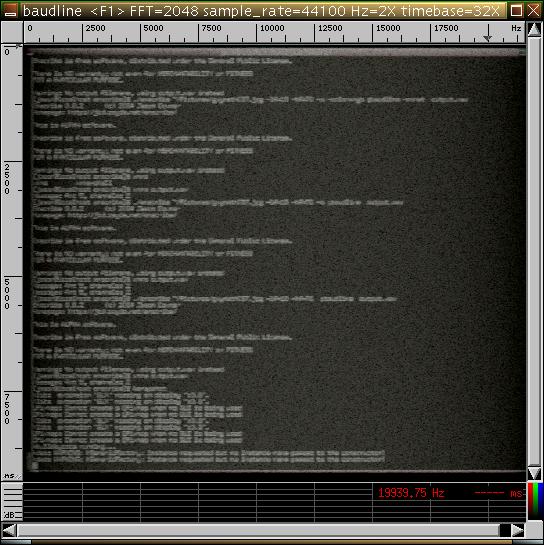 Enscribe
is distributed as source.
To compile it, you need gcc and the following software libraries
installed:
Enscribe
is distributed as source.
To compile it, you need gcc and the following software libraries
installed:
gd
gd-devel
libsndfile
All are available through http://freshmeat.net
When you're ready, type make
And
if you want it available system wide, as root type make
install
I've put a precompiled linux binary for
i386 here
in case you just hate to compile things. You still need to have
libsnd and gd on your system though.
(snapshot2-ov.mp3)
Usage and Options
Enscribe has quite a few options, to see them
all, type "enscribe -help"
Here's a
sample: Enscribe 0.0.3
(c) 2004 Jason Downer
Homepage:
http://jbd.zayda.net/enscribe/
This is ALPHA
software.
Enscribe is free software, distributed under the
General Public License.
There is NO warranty; not even for
MERCHANTABILITY or FITNESS
FOR A PARTICULAR PURPOSE.
Usage:
enscribe [switches] input_image output_audio
Valid image
formats: Jpeg, Png, WBMP, Xbm, GD, GD2
Switches:
-inverse, -i
Inverse (negative) input image
-color=[mode]
Sets color conversion method for the input file:
g
greyscale
m
monochrome, ugly
rc
red and cyan (default)
oa
orange and aqua
yb
yellow and blue
gp
green and purple (for Baudline(TM) )
wb
reyscale on left, inverse on right. Weird.
monet
pseudo 3-color for "baudline -monet" display.
-transform-size=[size] iFFT blocksize:
-ts=[size]
0 = 512
1 = 1024 (default)
2 = 2048
3 = 4096
-lf=[start]
Set low frequency start of image (default=0%)
-hf=[stop]
Set high frequency stop of image (default=100%)
-hiss,
-h
Uses hissing rather than buzzing
-oversample, -o
4X oversample audio (activates -hiss)
-mono,
-m
Produce mono ouput audio file.
-stereo, -s
Produce stereo ouput audio file (default).
-rate=[rate]
Set audio sample rate (44100 default).
-wav
Output wav audio (default)
-aiff
Output aiff audio data
-au
Output au audio data
-raw
Output raw audio data
-stdout
Output raw audio data to <stdout>
Subformats
-de
File format default endian-ness (default)
-le
Little Endian
-be
Big Endian
-ce
Your CPU's endian-ness
-pcm8
Signed 8-bit data
-pcm16
Signed 16-bit data (default)
-pcm24
Signed 24-bit data
-pcm32
Signed 32-bit data
-float
32-bit floating point
-double
64-bit floating point
-ulaw
U-Law
-alaw
A-Law
A typical use of this command would look
like:enscribe -oversample -lf=5 -hf=70 -color=yb
-wav north.jpg output.wav
lame output.wav north.mp3
MISC
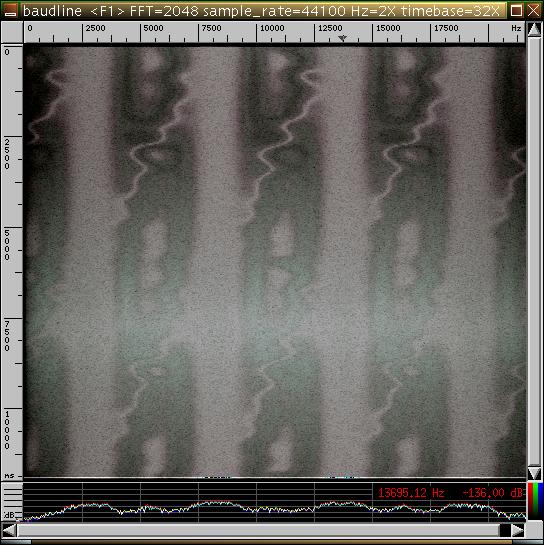 Note
that only greyscale and monochrome are supported in monoaural
mode.
Note
that only greyscale and monochrome are supported in monoaural
mode.
To reduce buzzing, I recommend always using the
-hiss or -oversample switches. They do
reduce image quality, but they sound better, and are more
impervious to digital mangling.
MP3 and Ogg encoders are
LOSSY encoders, and what they like to lose most are the upper
harmonics of a file. If you are going to compress your output
audio, I suggest you bring down your high frequency stop to around
65 or 70 like this-hf=70.
If you are
using your file in a lossless way, feel free to place your images
anywhere in the spectrum, they should survive just
fine.
(0523-ov.mp3)
Here's
a neat sounding progression. That white line across the middle
makes the crescendo towards the end.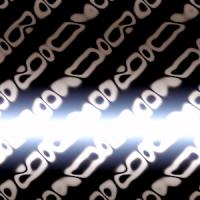
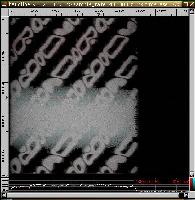
(0524-ov.mp3)
I hope you enjoy playing around with this
software. Feel free to send me suggestions, bugs, or links to cool
files you've made.
Jason Downer
JBD is over at
COPPERCLOUDMUSIC daht COM
All materials © 2002-2010 Jason Downer